ABOVE;DR: Reliable PDF navigation is achieved by handling hyperlinks at creation time. Learn how JavaScript developers can choose the right hyperlink types, apply consistent styling, validate intent, and remove broken links to produce PDFs that are faster, easier to maintain, and easier to use.
Generating PDFs with JavaScript has become a standard requirement for modern applications, including reports, invoices, contracts, and technical documentation. Although developers often focus on layout, fonts, and data accuracy, hyperlinks are one of the most common sources of post-delivery problems.
In PDF, navigation relies entirely on link annotations and destinations specified at creation time. If the link is misconfigured, annotation boundaries are misaligned, labels are unclear, URLs are invalid, or references are out of date, the problem will only become apparent once the document gets into the user’s hands.
This guide outlines four practical PDF hyperlinking best practices using Syncfusion® A JavaScript PDF library that helps JavaScript developers create predictable, reliable, and easy-to-use navigation directly during PDF creation.
Explore Now
Add hyperlinks to PDF during creation
The most reliable way to manage hyperlinks is while the PDF is being created. Adding links at build time ensures they are embedded directly into the document structure, eliminating post-processing errors and broken navigation.
The Syncfusion JavaScript PDF library works completely in the browser, requires no server-side processing, and allows hyperlinks to be attached precisely to text or page regions when a PDF is created.
Below is a simple example showing how hyperlinks are attached to text during PDF creation so that navigation works correctly when the file is downloaded.
// Create a PDF document
var document = new ej.pdf.PdfDocument();

// Add a page
var page = document.addPage();

// Get graphics from the page
var graphics = page.graphics;

// Set font
var font = document.embedFont(ej.pdf.PdfFontFamily.helvetica, 14, ej.pdf.PdfFontStyle.regular);

// Draw text
graphics.drawString('Explore the features and controls of the Syncfusion JavaScript PDF Library', font, { x: 10, y: 40, width: 800, height: 200 }, new ej.pdf.PdfBrush({ r: 0, g: 0, b: 0 }));

// Get the text size
var size = font.measureString('Syncfusion JavaScript PDF Library');

// Create a new text web link annotation
var annotation = new ej.pdf.PdfTextWebLinkAnnotation({ x: 255, y: 40, width: size.width, height: size.height }, { r: 0, g: 0, b: 255 }, { r: 165, g: 42, b: 42 }, 1);

// Sets the URL of the annotation.
annotation.url = "

// Add annotation to the page
page.annotations.add(annotation);

// Save the document
document.save('Output.pdf');

// Close the document
document.destroy();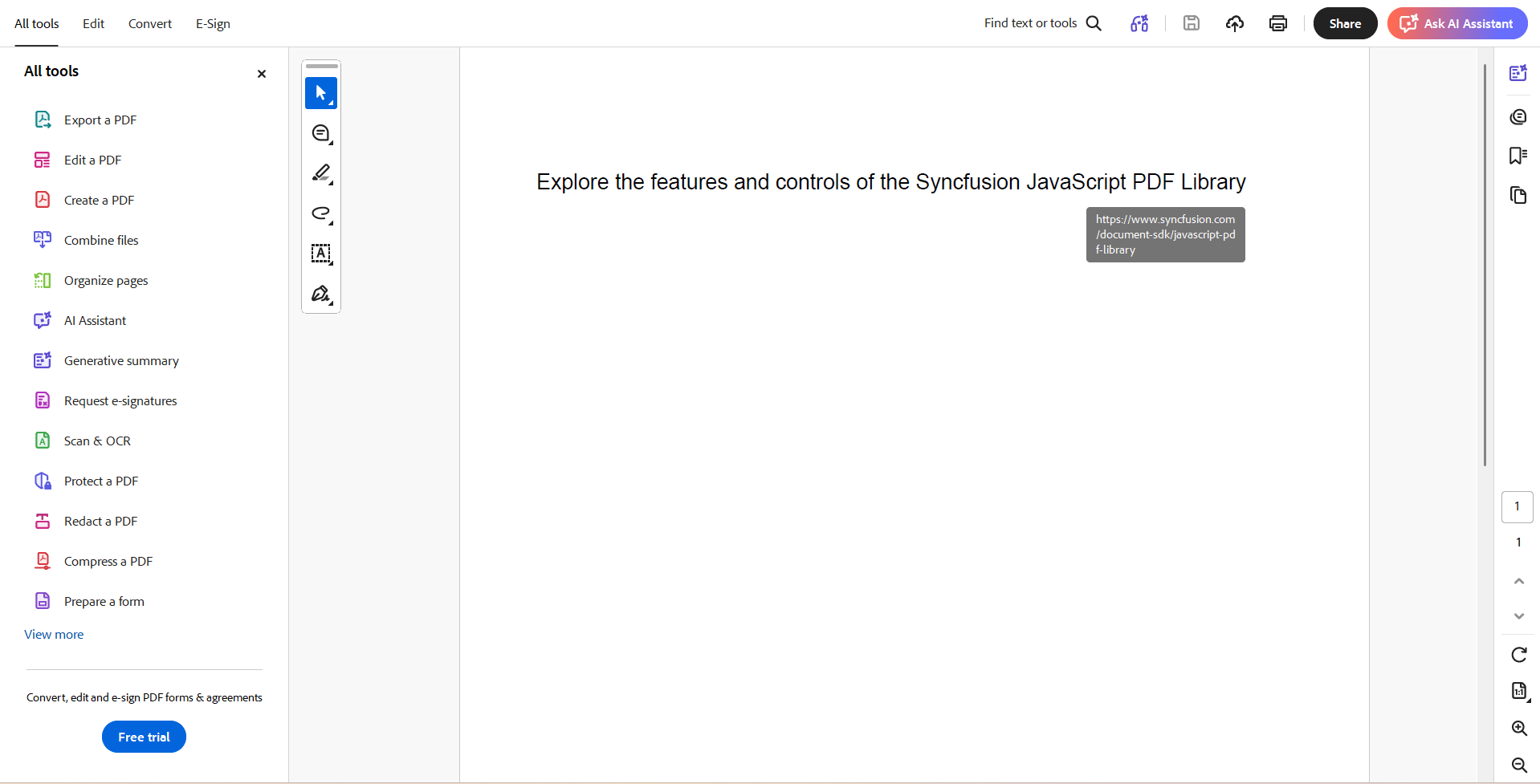
For step-by-step setup and advanced scenarios, see the Syncfusion JavaScript PDF Library documentation.
With this foundation in mind, let’s focus on best practices that prevent navigation problems before they reach users.
Exercise 1: Choose the right hyperlink type for each navigation target
Not all PDF hyperlinks behave the same. Each link type maps to specific navigation behavior, and incorrect use can result in inconsistent or broken navigation throughout the PDF viewer.
Common types of hyperlinks include:
- Link URI (Web).
Used for external websites such as documentation, product pages, or support portals. - Internal doc link (GoTo)
Navigation within the same PDF, ideal for tables of contents, section jumps and cross-references. - External file link (Remote GoTo)
Navigate to a PDF or other file. This should only be used when access to the target file is guaranteed.
For most documents, URI links and internal document navigation are sufficient. File-based links should be treated as a special case because they depend on file availability.
Here’s how you do it in code:
// Document base64 string
var data = “JVBERi0xLjQNCiWDkvr……………”

// Load an existing PDF document
var document = new ej.pdf.PdfDocument(data);

// Access the first page
var page = document.getPage(0);

// Access the destination page
var page1 = document.getPage(1);

// Create a new URI annotation
var WebLinkAnnotation = new ej.pdf.PdfUriAnnotation({ x: 125, y: 235, width: 105, height: 15 }, '

// Create a new text web link annotation
var documentLinkAnnotation = new ej.pdf.PdfDocumentLinkAnnotation({ x: 90, y: 385, width: 330, height: 20 }, { r: 165, g: 200, b: 135 }, { r: 165, g: 42, b: 42 }, 1);

// Initializes a new instance of the `PdfDestination` class.
var destination = new ej.pdf.PdfDestination(
    page1,
    { x: 20, y: 700, width: 100, height: 50 },
    { zoom: 50, mode: ej.pdf.PdfDestinationMode.fitToPage }
);

// Sets the destination to the document link annotation.
documentLinkAnnotation.destination = destination;

// Add annotation to the page
page.annotations.add(WebLinkAnnotation);
page.annotations.add(documentLinkAnnotation);

// Save the document
document.save('output.pdf');

// Close the document
document.destroy();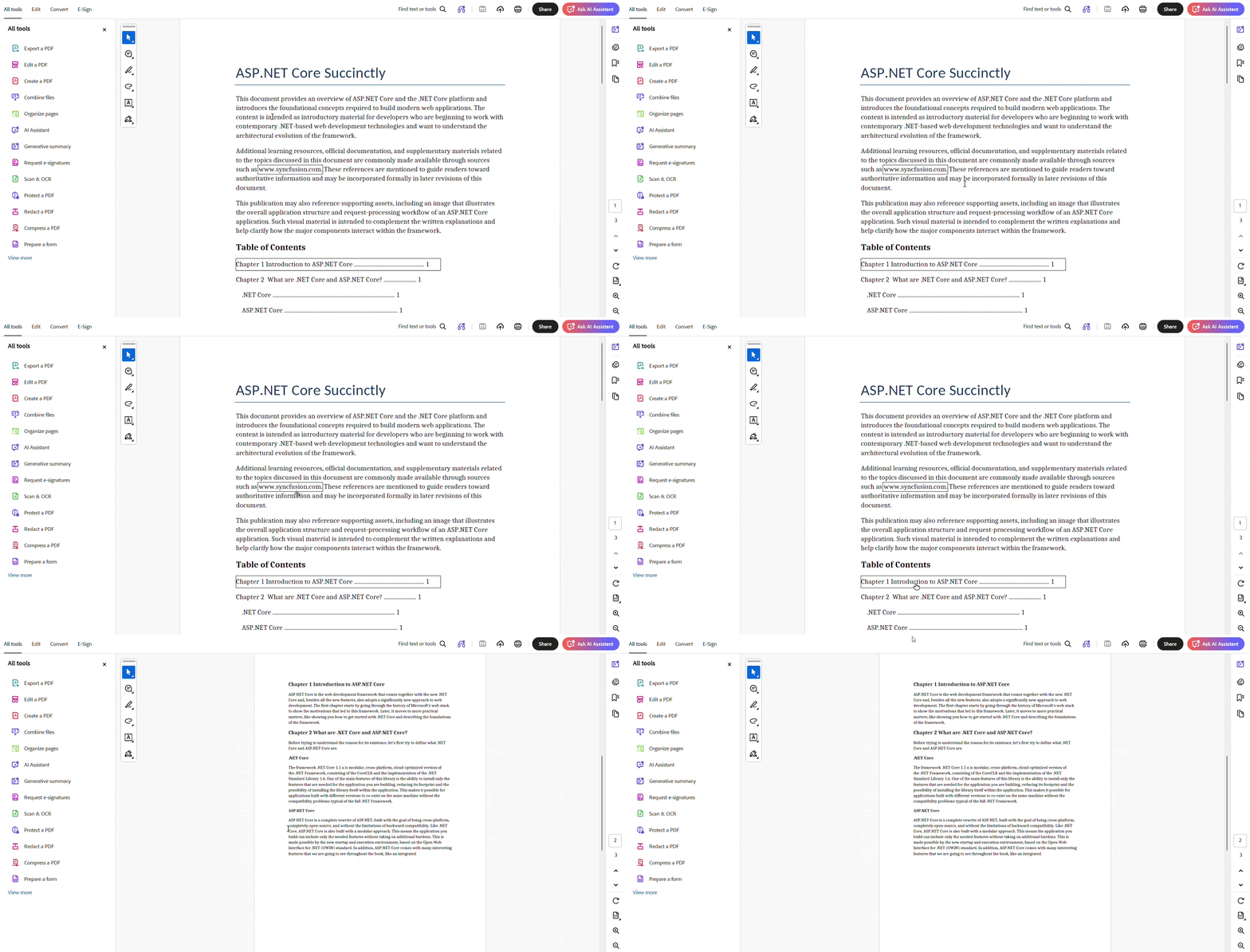
Selecting the correct hyperlink type will establish a strong navigation foundation before styling or validation is handled.

Read Now
Exercise 2: Write clear, descriptive anchor text and apply consistent style
Link text should convey intent before users click. Generic phrases like “click here” or “read more” don’t provide useful context, especially in long or technical documents.
Effective PDF hyperlink text should:
- Clearly explain the goal or action
(for example, “View API Reference” instead of “Learn more”) - Use familiar visual cues like different colors or underlining
- Maintain sufficient contrast against the background for easy reading
The code example below creates a styled link using descriptive text and matching underlining.
// Set font
var font = document.embedFont(ej.pdf.PdfFontFamily.helvetica, 14, ej.pdf.PdfFontStyle.regular);

// Set font with Underline
var font2 = document.embedFont(ej.pdf.PdfFontFamily.helvetica, 14, ej.pdf.PdfFontStyle.regular | ej.pdf.PdfFontStyle.underline);

// Draw text
graphics.drawString('Explore the features and controls of the', font, { x: 10, y: 40, width: 800, height: 200 }, new ej.pdf.PdfBrush({ r: 0, g: 0, b: 0 }));

//Draw link text
graphics.drawString('Syncfusion JavaScript PDF Library', font2, { x: 260, y: 40, width: 800, height: 200 }, new ej.pdf.PdfBrush({ r: 0, g: 0, b: 255 }));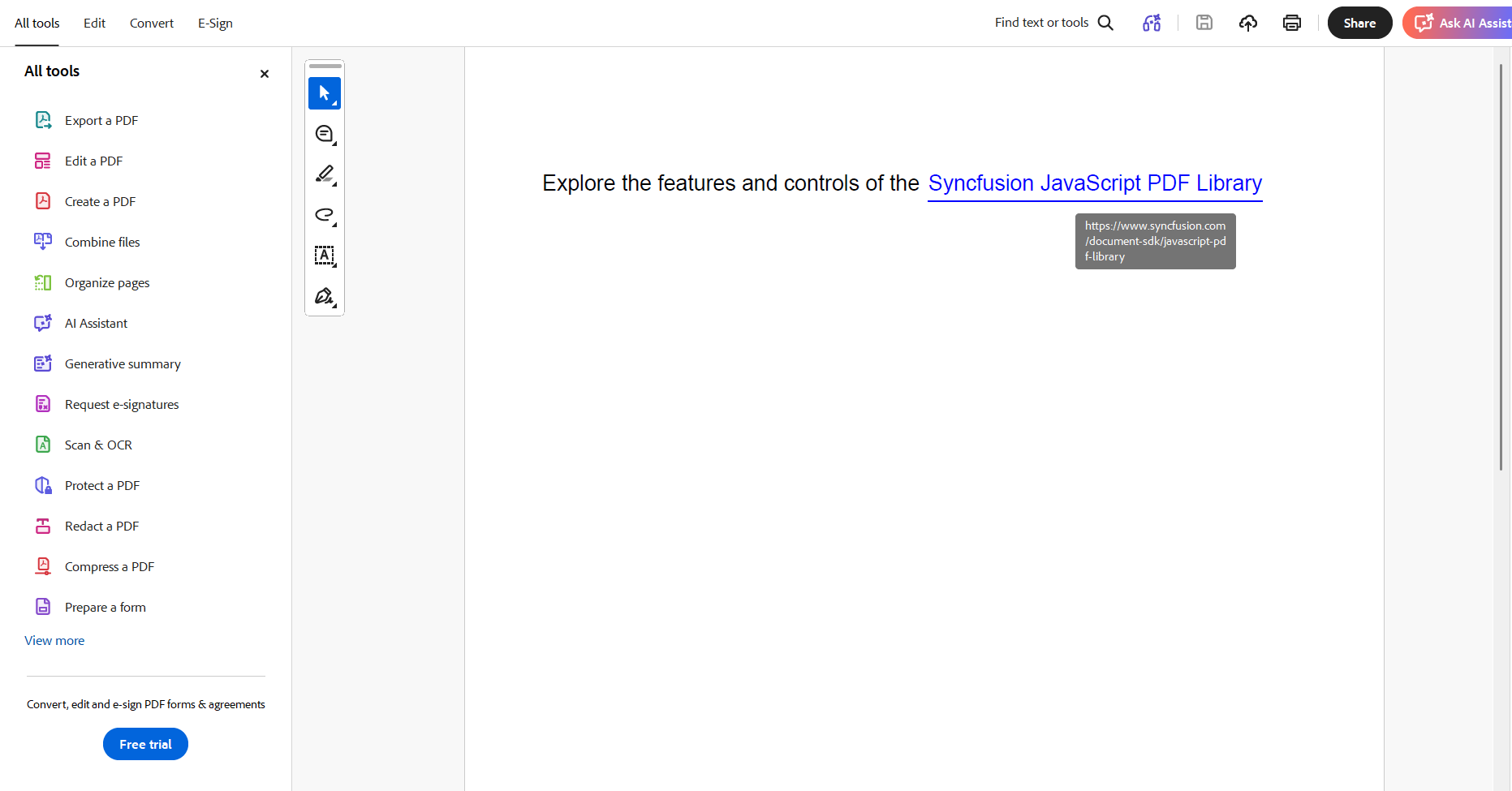
Clear labeling reduces navigation barriers and increases document usability. The next practical discusses how to overcome these problems at generation time.
Exercise 3: Validate and maintain hyperlink integrity at creation time
A hyperlink may look visually correct but still fail if its destination is invalid. This usually happens when a link references:
- Local or environment-specific file paths
- Relative URLs whose resolution is inconsistent
- URLs that have changed since the content was created
To maintain reliable navigation:
- Prefer absolutes HTTPS URLs for all external links
- Verify the destination programmatically or via automatic check before saving the PDF
- Revalidate hyperlinks whenever the referenced content or URL changes
Try this in your code:
// Create a new text web link annotation
var annotation = new ej.pdf.PdfTextWebLinkAnnotation(
    { x: 260, y: 40, width: size.width, height: size.height },
    { r: 0, g: 0, b: 255 },
    { r: 165, g: 42, b: 42 },
    1
);

// Always use validated absolute HTTPS URLs to avoid silent failure
annotation.url = "https://www.syncfusion.com/";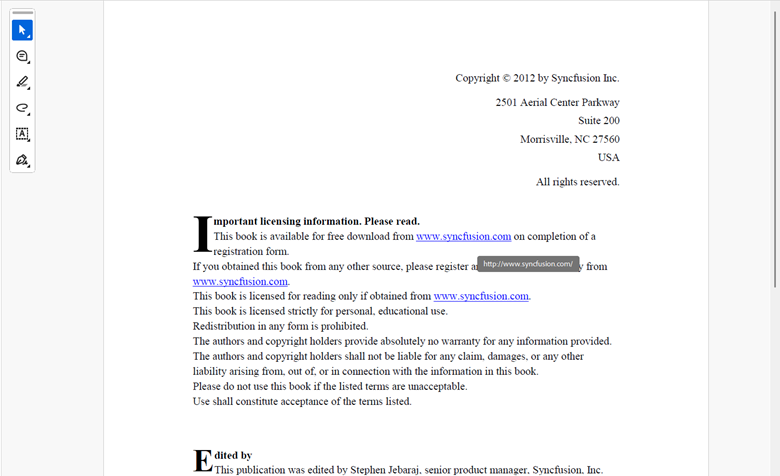
Addressing these issues during PDF creation will prevent silent failures and eliminate the need for expensive post-shipment repairs.
Try Now
Exercise 4: Identify and remove broken or incorrect hyperlinks before submission
As a document evolves, it is easy for outdated link annotations to remain embedded in the PDF structure. Even one broken link in a shared document can undermine user trust.
Final cleaning before shipping helps ensure:
- All navigation paths remain functional
- The document feels consistent and smooth
- Users never get stuck
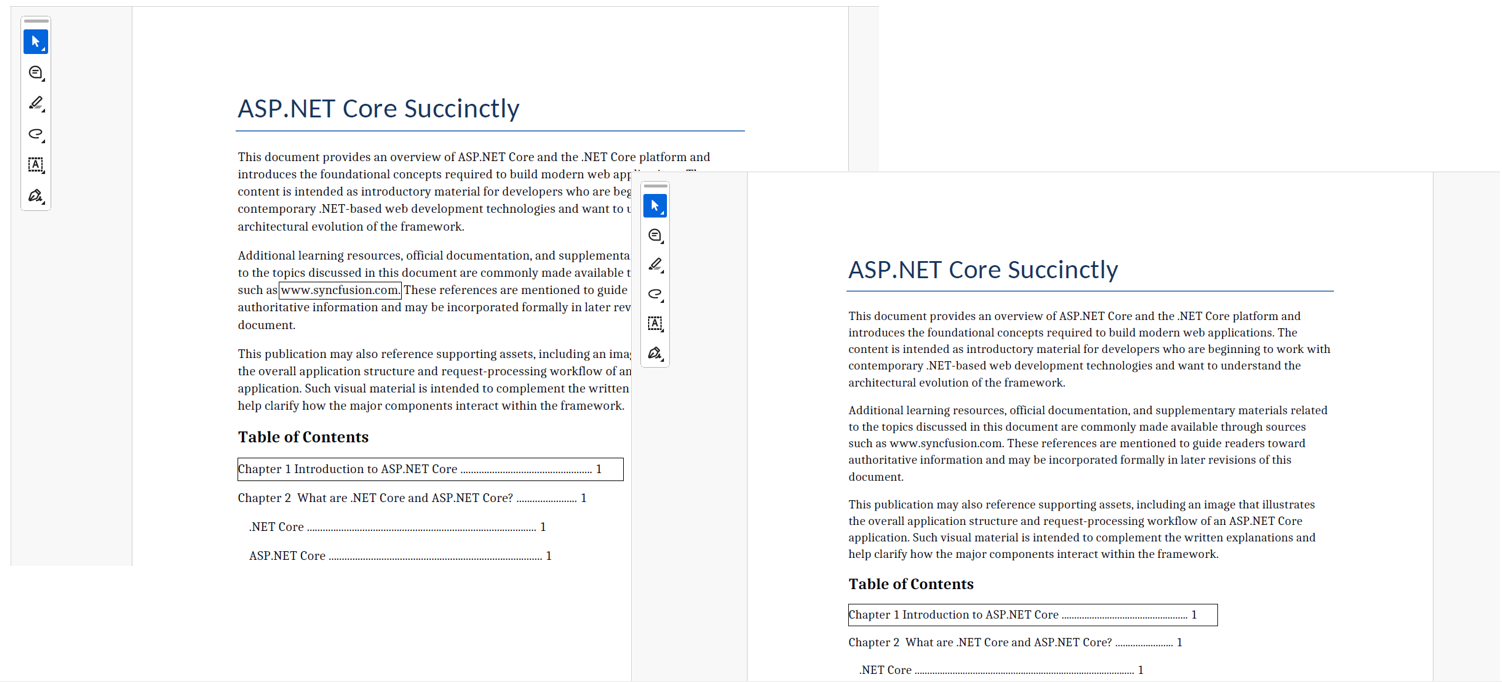
The example below shows how to find and remove hyperlinks from an existing PDF.
// Access first annotation from the PDF page
var link1 = page.annotations.at(0);

// Remove an annotation from the collection
if (link1 instanceof ej.pdf.PdfUriAnnotation) {
    page.annotations.remove(link1);
}
Looking for more control over hyperlink implementation with practical code examples? See the hyperlink and API documentation in the Syncfusion JavaScript PDF Library.
Frequently Asked Questions
Can multiple types of hyperlinks coexist in the same PDF?
Can hyperlinks be added without visible text?
Yes. Hyperlinks can be applied to any rectangular region, including images or graphic elements. Annotation boundaries define the clickable area.
Can hyperlink behavior be tested before distribution?
Yes. Rendering the resulting PDF in a browser-based PDF viewer allows link behavior to be validated without opening an external application.
Do hyperlinks affect file size or rendering performance?
No. Hyperlinks add minimal metadata and usually do not affect file size or performance.
Are hyperlinks retained after PDF compression?
Yes. Compression does not delete annotation data, so hyperlinks remain functional after compression.
Try it Free
Conclusion
Thanks for reading! Reliable PDF navigation results from intentional choices before the file leaves your environment. Together, these four practices form one cohesive workflow:
- Choose the correct link type for each navigation scenario
- Use clear, descriptive anchor text with a consistent style
- Validate the destination during PDF creation
- Remove outdated or broken links before sending
The Syncfusion JavaScript PDF library supports the complete hyperlink lifecycle directly in the browser, allowing developers to implement this practice without additional tools or post-processing.
See hyperlinks, annotations, and PDF creation work together in a live demo.
If you are a Syncfusion user, you can download the setup from the license and downloads page. Otherwise, you can download a free 30-day trial.
You can also contact us via the support forum, support portal, or feedback portal for questions. We are always happy to help you!
PakarPBN
A Private Blog Network (PBN) is a collection of websites that are controlled by a single individual or organization and used primarily to build backlinks to a “money site” in order to influence its ranking in search engines such as Google. The core idea behind a PBN is based on the importance of backlinks in Google’s ranking algorithm. Since Google views backlinks as signals of authority and trust, some website owners attempt to artificially create these signals through a controlled network of sites.
In a typical PBN setup, the owner acquires expired or aged domains that already have existing authority, backlinks, and history. These domains are rebuilt with new content and hosted separately, often using different IP addresses, hosting providers, themes, and ownership details to make them appear unrelated. Within the content published on these sites, links are strategically placed that point to the main website the owner wants to rank higher. By doing this, the owner attempts to pass link equity (also known as “link juice”) from the PBN sites to the target website.
The purpose of a PBN is to give the impression that the target website is naturally earning links from multiple independent sources. If done effectively, this can temporarily improve keyword rankings, increase organic visibility, and drive more traffic from search results.
